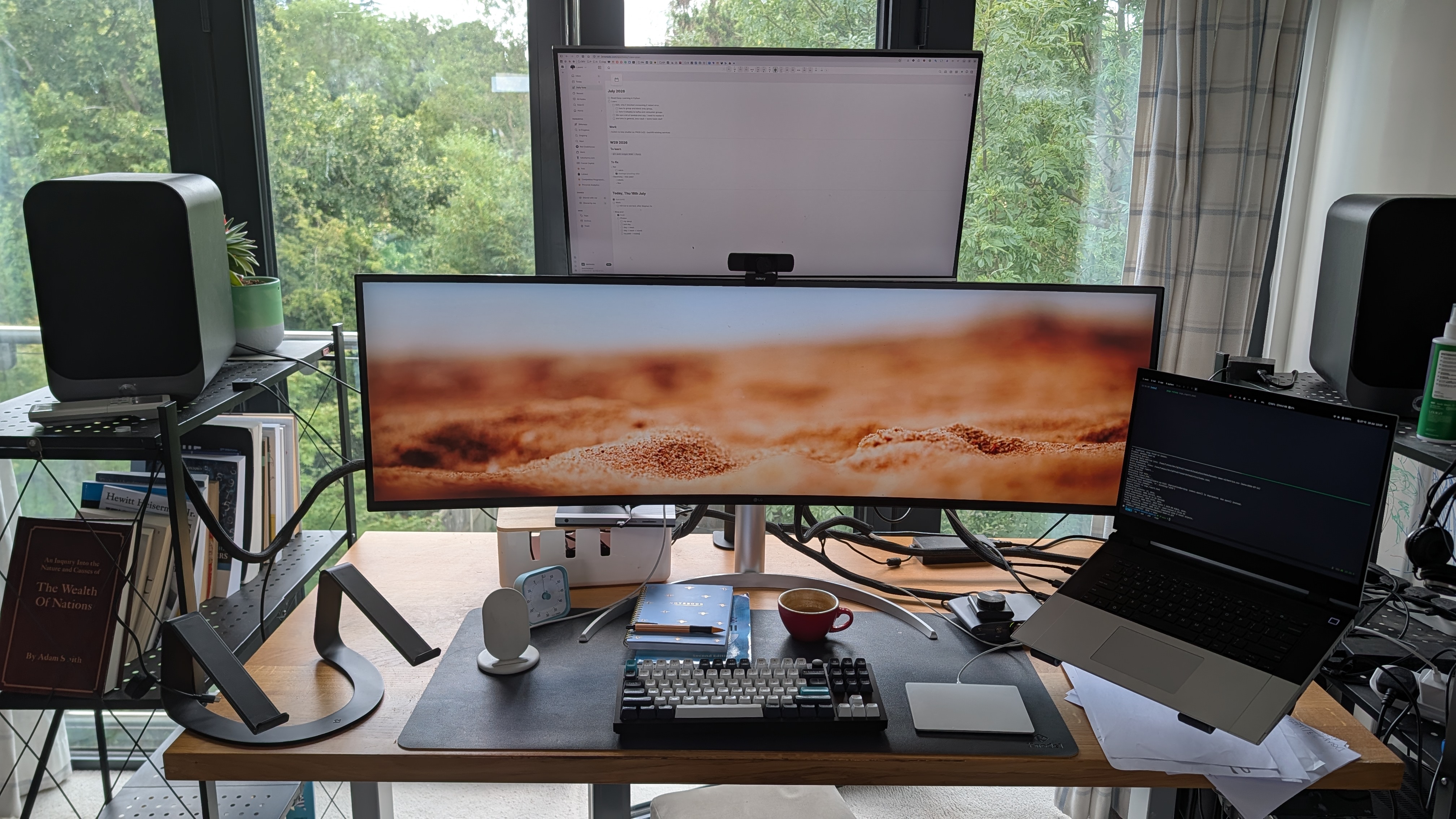
I run three monitors, and I am picky about what gets a spot on any of them. The top one is reserved for a single tab: my Daily Note.
Back when I used Roam Research, I liked seeing a new, clean daily note every day. It let me plan my day.
That was not enough, though. Sometimes I wanted to plan my week, month, or year, to keep a few things in view over a longer period.
At the same time, I was building 3Monads, a life management app. I quickly realized I could add this feature there, and I have used it every day since.
I recommend this to fellow software engineers and to anyone else with a lot going on, who wants to release the cognitive load of remembering “what was I actually doing this week?”
My Daily Note now sits inside 3Monads, split into a few sections stacked on top of each other. It starts small: just today’s note. Under the hood it is a date-based filter: anything I write on a future week, month, or quarter page stays parked there until that period starts, then its section floats up and stacks above today, and drops off once the period ends. I use three sections, but I could add more.
The Monthly section tells me what I need to learn or finish reading this month. Right now that is finishing “Deep Learning in Python”; this quarter it is reaching a Codeforces red rank. I keep adding items there as I go. If something takes longer, I move it to the quarterly or yearly section. These items are not as strict as tasks with deadlines, but they are still checkable, and they float as reminders. That lets me focus on doing things and come back later to whatever I postponed.
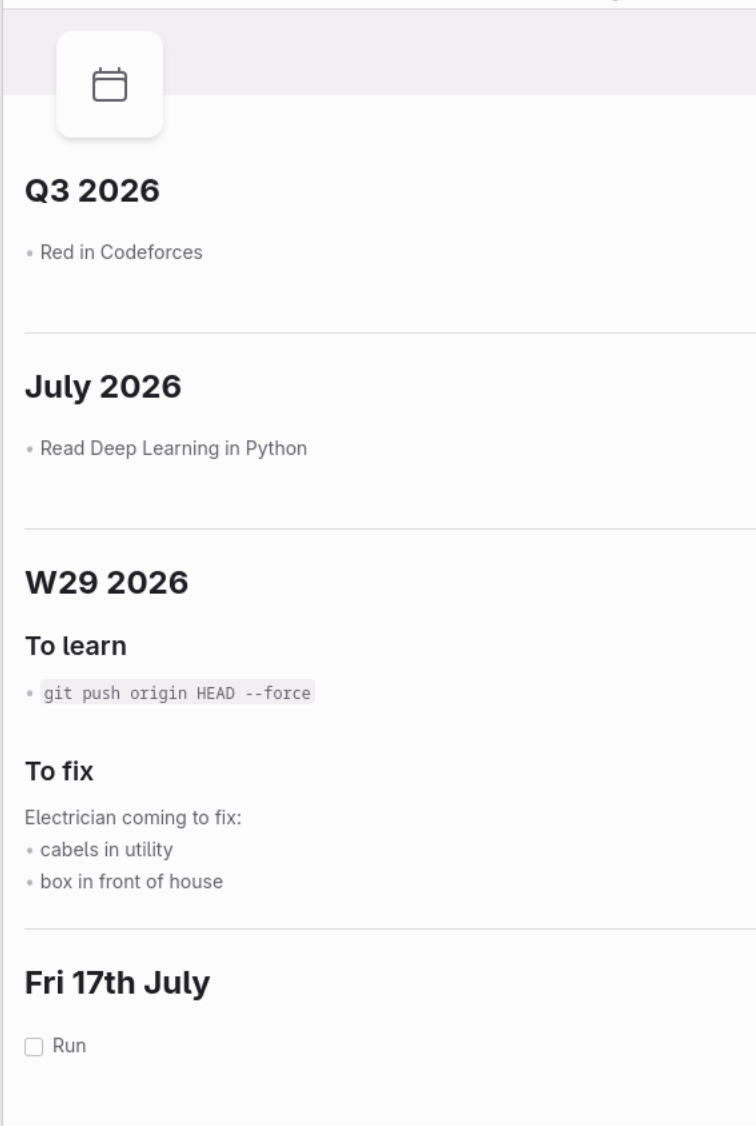
The next section is Week, where I keep my weekly items.
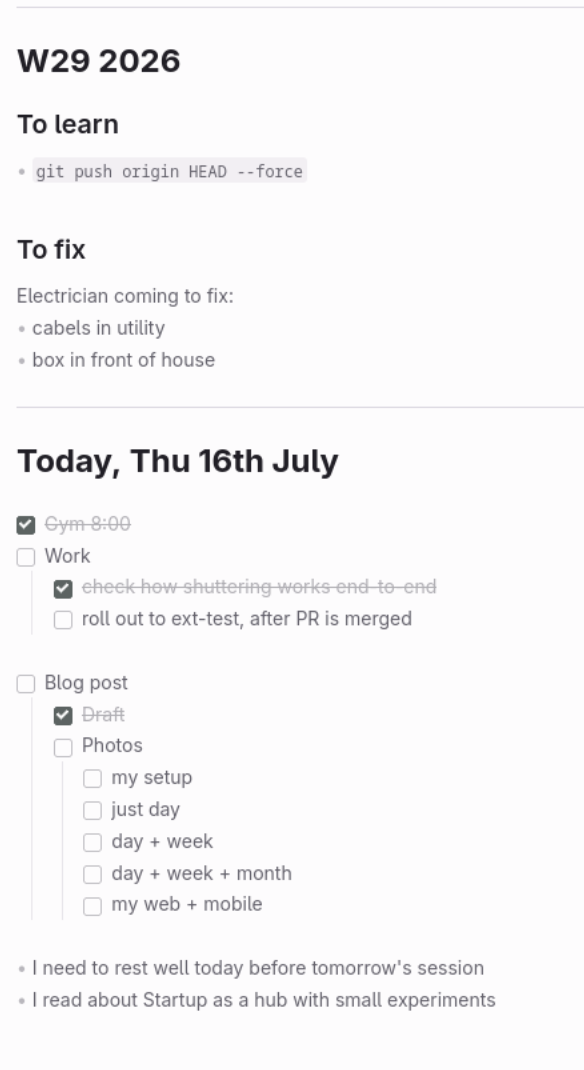
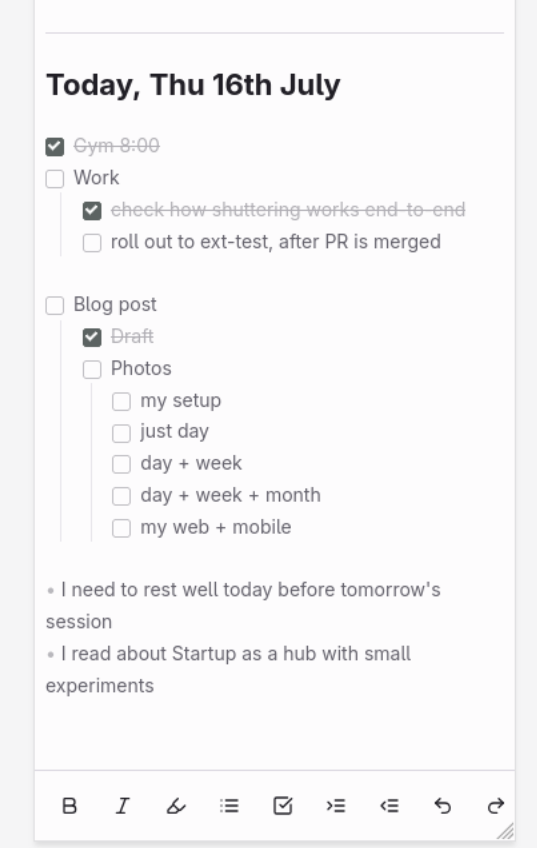
The last section is the daily one, new every day. I like to start at 6:50 with coffee and list checkboxes for things to do. I use indentation for different areas, like Work or Side Projects.
I think this works well because it leaves it up to the user to decide when things should disappear from focus. A lot of things in our lives do not need to become tasks. If we turn everything into a task, we end up with long backlogs and never accomplish much, which hurts our creativity and self-development. Try it today, and see how much easier it gets to remember things.
Why not just use a separate note, or paper?
A separate note works fine too, but you have to remember to move things out of sight yourself. I have done this before: a monthly goal sat untouched in a random note for close to three months before I noticed it again. When the month ends and you still have a few goals left, nothing does that cleanup for you. You either carry them over manually or they quietly rot in a note you stop opening.
Paper has the same problem, plus one more. It is great for initial thinking and quick scratch notes, and I still write physical daily notes from time to time. But paper does not last and does not travel well. When I want to keep something, I move it into 3Monads so I can reach it from any device.
How to
- Go to 3monads.com.
- Sign up, or sign in if you already have an account.
- Click Daily Note in the left sidebar.
- You will see a blank day. Plan your day.
- Do you need to remember something further out? Find it in the calendar on top and click
W<number>for a week, or use the left arrow to step out to a month or quarter. Write it there, and it stays parked until that period starts, then stacks above today automatically.
- The rest is standard markdown: Ctrl+Enter turns a line into a bullet, press again for a checkbox, again to
toggle it,
#for headers, Ctrl+H/B/I for highlight, bold, italic, and Tab/Shift+Tab to indent.
Set this up once, and the top monitor stops being just another screen. It becomes the one place you glance at to know what actually needs your attention today.